
Getting Started
Accessing the App
To use Markdown Exporter for Monday.com:-
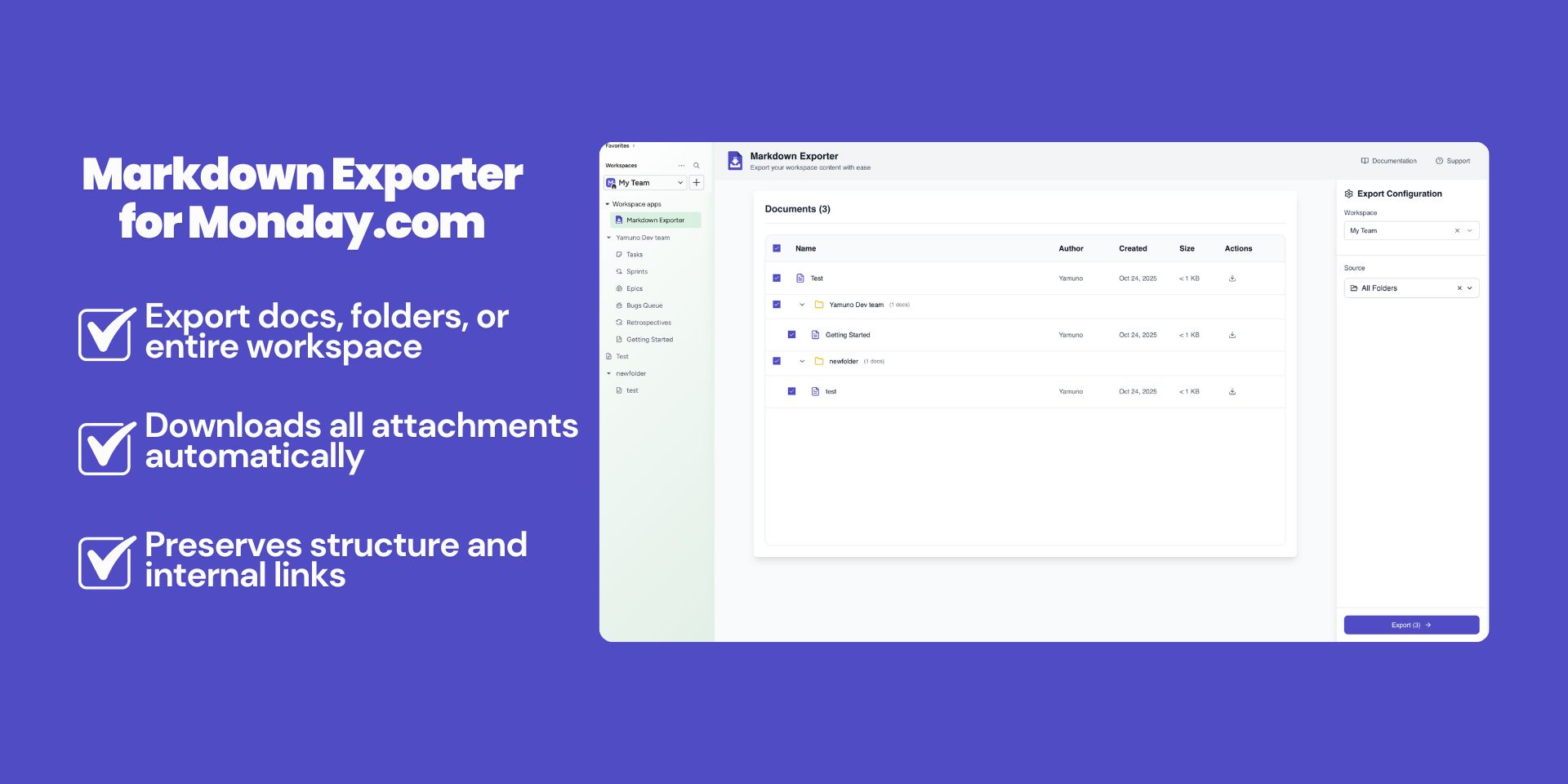
Open Workspace Apps
- Navigate to your Monday.com workspace
- Click on the workspace apps section
- Select “Markdown Exporter” from your installed apps
-
Select Your Workspace
- Choose the workspace containing the docs you want to export
- The app will load all available folders and documents
-
Choose Export Source
- Select Specific Folder to export docs from a particular folder
- Or select All Folders to export the entire workspace documentation
Core Export Features
Single Document Export
Export individual documents from the list of processed docs. How to use:- Open the app from workspace apps section
- Select your workspace and source (specific folder or all folders)
- Browse the list of available documents
- Select the specific document you want to export
- Click “Download” for that document
- Quick exports of specific documents
- Testing export functionality
- Sharing individual docs with specific formatting
Folder Export
Export entire folders with preserved hierarchy. How to use:- Open the app from workspace apps section
- Select your workspace
- Choose Specific Folder as your source
- Select the folder you want to export
- Click “Download Processed File” to get all documents as a ZIP
- Maintains folder structure
- Preserves parent-child relationships
- Includes all nested docs
- Organizes attachments by folder
- Exporting project documentation
- Creating topic-based archives
- Backing up specific sections
Workspace Export
Export your complete Monday.com workspace documentation. How to use:- Open the app from workspace apps section
- Select your workspace
- Choose All Folders as your source
- Review the complete list of documents to be processed
- Click “Download Processed File” to export everything as a ZIP
- Complete workspace backup
- All docs and folders included
- Comprehensive attachment handling
- Organized ZIP structure with preserved hierarchy
- Full workspace backups
- Complete documentation archives
- Exporting all documentation at once
Attachment Handling
Local Attachment Download
All attachments are downloaded and saved with your markdown files. Supported file types:- Images (PNG, JPG, GIF, SVG, WebP)
- Documents (PDF, DOCX, XLSX, PPTX)
- Media files (MP4, MOV, MP3)
- Archives (ZIP, RAR)
- Other file types
Reference Preservation
All attachment references in markdown are updated to point to local files:Attachment Organization
By doc: Attachments organized by source document By type: Optional grouping by file type Flat structure: All attachments in single folderFormatting Preservation
Supported Markdown Features
The exporter preserves all standard markdown formatting: Text Formatting:- Bold, italic, strikethrough
- Headers (H1-H6)
- Block quotes
- Horizontal rules
- Unordered lists
- Ordered lists
- Nested lists
- Task lists with checkboxes
- Inline code
- Code blocks with syntax highlighting
- Language specification
- Standard markdown tables
- Column alignment
- Complex table structures
- External links
- Internal doc links
- Anchor links
- Email links
- Images with alt text
- Embedded videos
- File attachments
Monday.com-Specific Features
Mentions: Converted to plain text with @ symbol Status labels: Preserved as text or emojis Board links: Converted to text references Item links: Converted to markdown links where possibleExport Customization
File Naming Options
Choose how exported files are named:- Original names: Keep Monday.com doc names
- Slugified names: Convert to URL-friendly names
- Numbered: Add sequential numbers
- Custom prefix: Add custom prefix to all files
Output Format Options
Single ZIP: All content in organized ZIP Folder structure: Maintain Monday.com structure Flat export: All docs in single folder Split by section: Separate exports per sectionMetadata Inclusion
Optionally include metadata in frontmatter:Advanced Features
Internal Link Resolution
Internal links between Monday.com docs are intelligently converted:- Relative paths for local structure
- Preserved link text
- Fallback for broken links
- Cross-references maintained
Multi-workspace Support
Export from multiple workspaces:- Switch workspace in Monday.com
- Authorize app for new workspace
- Export as needed
- Organize exports separately
Incremental Exports
Export only changed docs since last export:- Enable “Track exports” option
- Perform initial export
- Subsequent exports only include:
- New docs
- Modified docs
- New attachments
Batch Processing
For large workspaces:- Automatic batching of exports
- Progress tracking
- Resume interrupted exports
- Error handling and retry
Tips & Best Practices
Before Exporting
- Clean up: Remove unnecessary docs
- Organize: Structure folders logically
- Check permissions: Verify access to all docs
- Update docs: Ensure content is current
During Export
- Stay online: Maintain internet connection
- Don’t close: Keep browser tab open
- Monitor progress: Watch for errors
- Be patient: Large exports take time
After Export
- Verify structure: Check folder organization
- Test links: Verify internal links work
- Check attachments: Ensure all files present
- Review formatting: Spot-check markdown rendering
For Best Results
- Use consistent naming: Standardize doc names
- Organize hierarchically: Use folders effectively
- Minimize duplicates: Consolidate similar docs
- Document structure: Include README files
- Test incrementally: Export small sections first