
Overview
Access Control allows administrators to restrict who can edit and add LaTeX macros. When enabled, only users in the whitelist can create or modify equations. When disabled, everyone with space access can edit.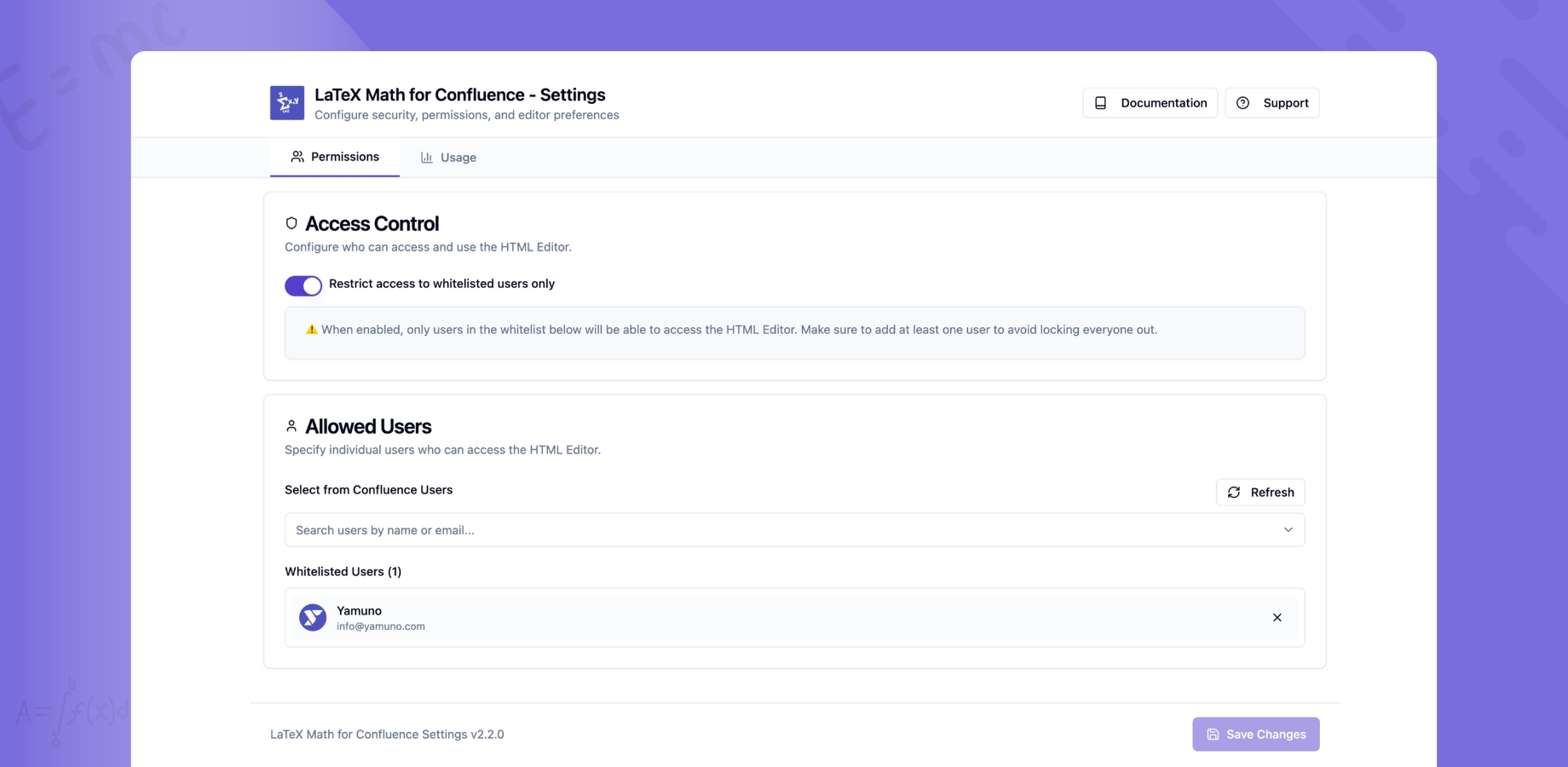
How It Works
Access Control Disabled (Default)
Who can edit:- ✅ Everyone with Confluence page edit permission
- ✅ Anyone with space access
- Small, trusted teams
- Development environments
- Internal collaboration spaces
- Quick prototyping
Access Control Enabled
Who can edit:- ✅ Users in the whitelist/allow list
- ✅ Confluence administrators (always)
- ❌ Users not in the whitelist
- ❌ Even if they have page edit permission
- Enterprise environments
- Sensitive technical content
- Compliance requirements
- Quality control needed
Viewing Permissions
Important: Everyone with page view access can view rendered LaTeX equations. Access control only restricts editing and adding macros.Configuring Access Control
Step 1: Access Configuration
- Go to Confluence Administration
- Click Manage Apps
- Find LaTeX Math for Confluence
- Click Configure
- Go to the Permissions tab
Step 2: Enable or Disable
Option A: Keep Access Open (Default)- Leave the toggle OFF
- Click Save Changes
- Everyone with space access can edit
- Toggle “Restrict edit access” to ON
- The whitelist section appears below
- Proceed to add users (see next section)
- Click Save Changes
Managing the Whitelist
Adding Users to Whitelist
- Enable “Restrict edit access” toggle
- Click “Add User” button
- A search dialog appears
- Search by typing:
- User’s name
- Email address
- Username
- Select the user from search results
- User appears in the whitelist
- Repeat for additional users
- Click “Save Changes”
💡 Tip: You can add multiple users before clicking Save Changes.
Removing Users from Whitelist
- Find the user in the whitelist table
- Click the “Remove” (❌) button
- User is removed from the list
- Click “Save Changes”
Whitelist Display
The whitelist shows:- User display name
- Email address
- Account ID
- Remove action button
How Access Control Works
For Whitelisted Users (When Enabled)
- User edits a Confluence page
- User adds or clicks to edit a LaTeX macro
- ✅ Editor opens - User can edit
- User can create new macros and modify existing ones
- Changes save normally
For Non-Whitelisted Users (When Enabled)
- User edits a Confluence page
- User tries to add or edit a LaTeX macro
- ❌ Access Denied - Error message appears
- Message: “You don’t have permission to edit LaTeX macros”
- User cannot add or modify equations
For Everyone (When Disabled)
- User edits a Confluence page with edit permission
- User can freely add and edit LaTeX macros
- No restrictions apply
Administrator Override
Confluence Administrators:- ✅ Always have access to edit LaTeX macros
- ✅ Bypass whitelist restrictions
- ✅ Can configure access control settings
- This cannot be disabled
Permission Checks
What’s Required to Edit
Both conditions must be met:When Checks Occur
Permissions verified:- When adding a new macro
- When opening the editor
- When saving changes
- Every time a macro is edited
Troubleshooting
User Gets “Access Denied”
Problem: Whitelisted user receives access denied error Solutions:- Verify user is in whitelist
- Check correct email/username
- Confirm changes were saved
- Refresh the page
- User should hard refresh (Ctrl+Shift+R)
- Try incognito mode
- Check user account
- Ensure Confluence account is active
- Verify user is logged in
- Re-add the user
- Remove from whitelist
- Add again
- Save changes
Everyone Can Edit (Unexpected)
Problem: Whitelist enabled but non-whitelisted users have access Solutions:- Verify toggle is ON
- Check “Restrict edit access” is enabled
- Click Save Changes
- Check if users are admins
- Administrators always have access
- This is expected behavior
- Clear cache
- Have users refresh their browsers
- Clear browser cache
Can’t Find User to Add
Problem: User doesn’t appear in search Solutions:- Verify user exists
- Check user has Confluence account
- Confirm account is active
- Try different search
- Search by full email address
- Search by username
- Check for typos
- Wait for sync
- New users may take a few minutes to sync
- Contact support
- If user definitely exists but won’t appear
Best Practices
✅ Do This
- Start restrictive - Enable access control from the beginning if needed
- Document your policy - Create a page explaining who can edit and why
- Respond to requests - Process access requests promptly
- Review regularly - Remove users who no longer need access
- Train whitelisted users - Ensure they understand LaTeX syntax
❌ Avoid This
- Don’t add everyone - Defeats the purpose of access control
- Don’t ignore requests - Users will find workarounds
- Don’t forget to save - Always click Save Changes after modifications
- Don’t add non-existent users - Verify accounts exist first
Integration with Confluence Permissions
Relationship
LaTeX Math permissions work alongside Confluence permissions:
Key Point: Users need both Confluence page edit permission and LaTeX whitelist access (when enabled).
Security Considerations
Data Protection
- ✅ Whitelist stored securely in Confluence
- ✅ Encrypted transmission
- ✅ No personal data exposed publicly
- ✅ GDPR compliant
Auditing
Currently available:- Confluence audit logs show page edits
- Page history tracks macro changes
- Detailed LaTeX-specific audit logs
- Permission change tracking
- Access attempt logging
Future Enhancements
Planned Features
- 👥 Group Support - Whitelist entire Confluence groups instead of individual users
- 📊 Permission Reports - See who has access and how they’re using it
- 🔄 Bulk Operations - Add/remove multiple users at once via CSV
- ⏰ Temporary Access - Grant time-limited access that expires automatically
- 📝 Detailed Audit Logs - Track all permission changes and access attempts
Related Documentation
- 📖 Usage Statistics - Track macro usage across your instance
- 📖 Getting Started - Quick setup guide
- ❓ FAQ - Frequently asked questions
Need Help?
Last Updated: January 2025