
Prerequisites
Before you begin, ensure you have:- A Confluence instance with admin access
- Markdown files ready to import
- Necessary permissions to create/edit pages
Installation Steps
-
Install the App
- Visit the Atlassian Marketplace
- Search for “Markdown Exporter & Importer for Confluence”
- Click “Get it now”
- Complete the installation
-
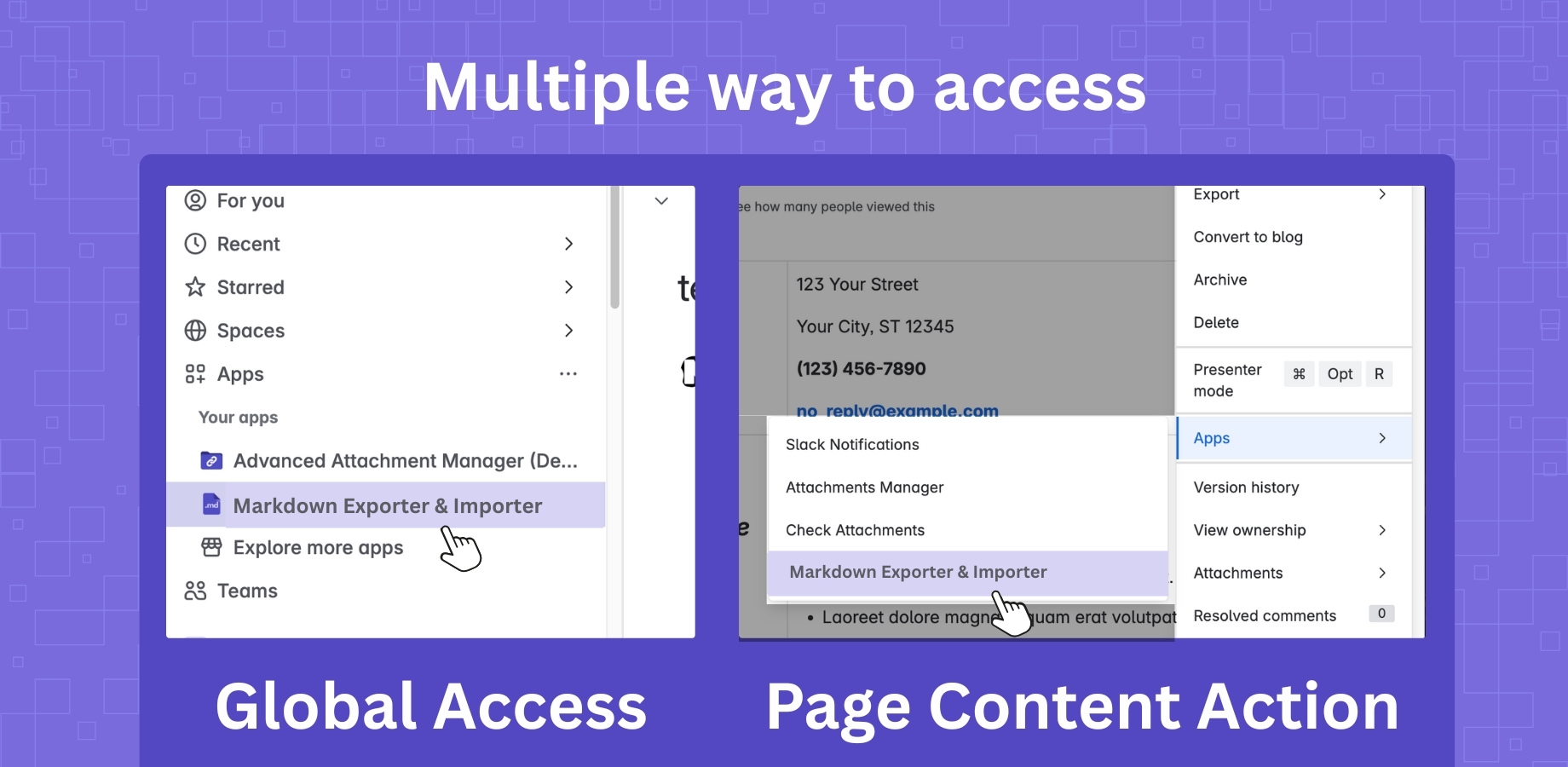
Verify Installation
- Go to any Confluence page
- Check for
Markdown Importer & Exporterin the••• -> Appsmenu - If visible, installation is successful
Your First Import
-
Prepare Your Files or ZIP
- Ensure your markdown files are properly formatted
- Keep your folder structure organized (it will become your page tree)
- Include local images and attachments alongside markdown
- Or compress your project into a single
.zip
-
Import the File(s) or ZIP
- Navigate to target page and use the ••• menu (page-level), or open from the global Apps menu (global access)
- Select “Markdown Importer”
- Choose multiple files or upload a
.zip - Click “Import”
-
Verify the Import
- Check the imported content
- Verify images and links
- Review formatting
Your First Export
-
Navigate to Page
- Go to the Confluence page you want to export
- Click the ••• (More actions) menu
- Select “Export to Markdown”
-
Choose Export Type
- Single Page: Export just the current page
- Include Children: Export page and all child pages
- Space Export: Export entire space (from global access)
-
Download Export
- Click “Export”
- Wait for processing
- Download the ZIP file with markdown and attachments
Common Tasks
Import Tasks:- Import Multiple Files: Use bulk import (no fixed limit)
- ZIP Upload: Upload a
.zipwith markdown, folders, and assets - Preserve Hierarchy: Maintain folder structure as page hierarchy
- Global Import: From global access, import to one, many, or all spaces (admins)
- Preview Content: Use preview before import
- Single Page Export: Export individual pages to markdown
- Page Tree Export: Export pages with all children
- Space Export: Export entire Confluence spaces
- Attachment Handling: All media downloaded with proper references
- Preserve Structure: Page hierarchy maintained in folder structure
Next Steps
- Read the Features Guide
- Check Known Issues
- Review Release Notes