
Overview
LaTeX Math for Confluence makes it easy to add mathematical equations to your pages. Simply use the/latex slash command to insert either inline or block macros.
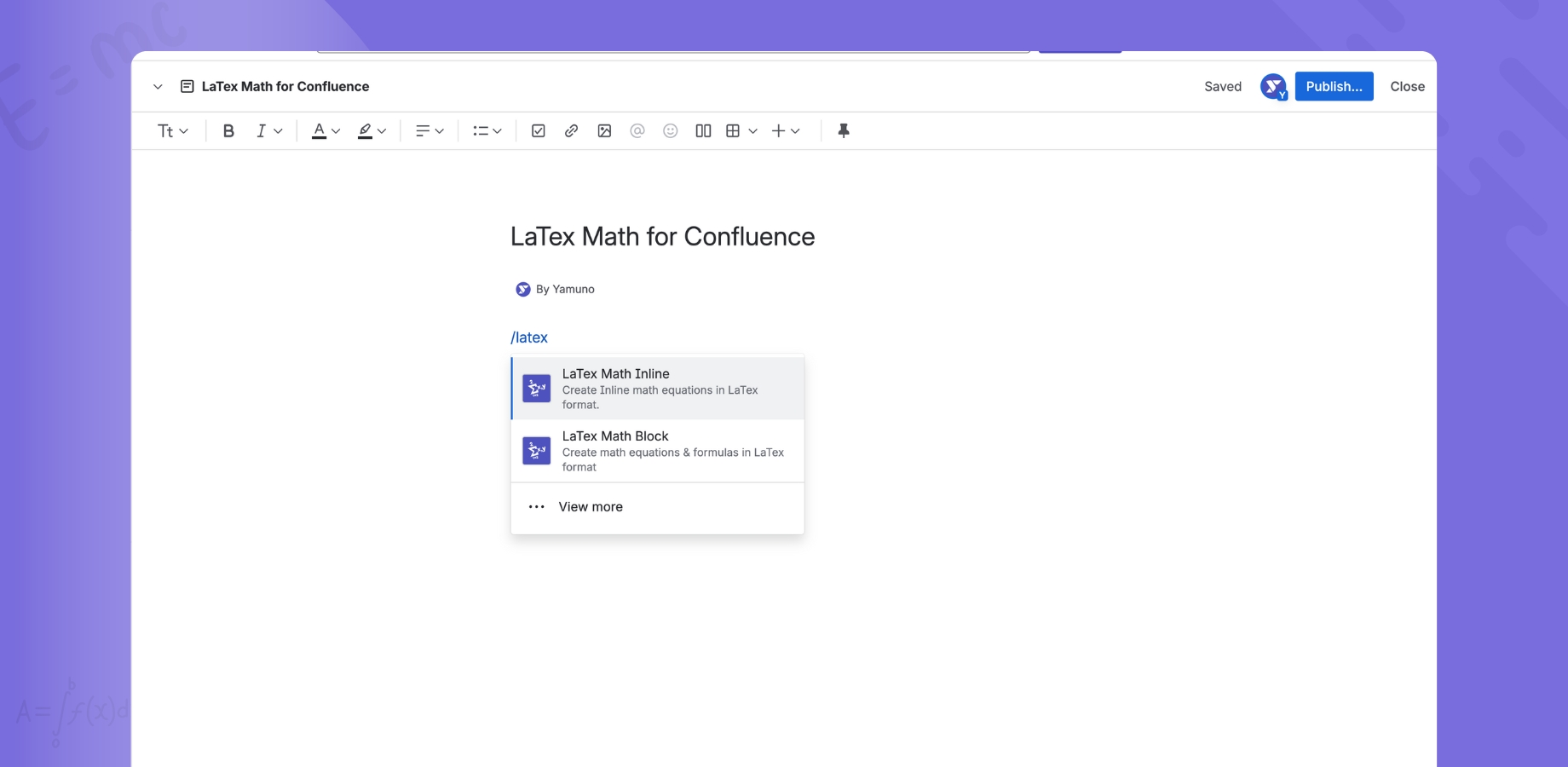
Using the Slash Command
Step 1: Open a Confluence Page
- Navigate to any Confluence page
- Click Edit to enter edit mode
- Place your cursor where you want to add the equation
Step 2: Type the Slash Command
- Type
/latexin the editor - A dropdown menu appears with two options:
- LaTeX Math for Confluence (Inline) - For inline equations
- LaTeX Math for Confluence (Block) - For display equations
Step 3: Select the Macro Type
For inline equations:- Select LaTeX Math for Confluence (Inline)
- Use for equations within text (e.g., E = mc²)
- Select LaTeX Math for Confluence (Block)
- Use for standalone equations on their own line
Step 4: Enter Your LaTeX Code
- The macro editor opens
- Type your LaTeX equation
- See live preview as you type
- Click Insert or Save
Step 5: Publish the Page
- Click Publish in Confluence
- Your equation renders on the published page
- Everyone with page access can view it
Quick Examples
Adding an Inline Equation
Use case: Equation within a sentence Steps:- Type:
/latex - Select: LaTeX Math for Confluence (Inline)
- Enter:
E = mc^2 - Click Insert
Adding a Block Equation
Use case: Standalone equation with emphasis Steps:- Type:
/latex - Select: LaTeX Math for Confluence (Block)
- Enter:
\int_{-\infty}^{\infty} e^{-x^2} dx = \sqrt{\pi} - Click Insert
Macro Types Explained
Inline Macro
Characteristics:- Flows with text
- Smaller size
- No line breaks
- Ideal for simple equations
- Variables in sentences (x, y, z)
- Simple formulas (a² + b²)
- Chemical formulas (H₂O)
- Mathematical notation in paragraphs
Block Macro
Characteristics:- Standalone display
- Centered on page
- Larger size
- Emphasized presentation
- Complex equations
- Important formulas
- Multi-line expressions
- Equations needing emphasis
Common LaTeX Syntax
Basic Operations
Greek Letters
Common Symbols
Tips for Adding Macros
✅ Best Practices
-
Choose the right macro type
- Inline for text integration
- Block for standalone equations
-
Use live preview
- Check your equation before inserting
- Fix errors immediately
-
Keep it simple
- Use clear LaTeX syntax
- Avoid overly complex expressions
-
Test before publishing
- Preview in edit mode
- Ensure equation renders correctly
-
Use standard LaTeX
- Stick to KaTeX supported commands
- Check KaTeX documentation
❌ Common Mistakes
-
Wrong macro type
- Using inline for complex equations (too small)
- Using block for simple variables (too much space)
-
Syntax errors
- Missing braces
- Unclosed delimiters
- Typos in commands
-
Unsupported commands
- Using LaTeX packages not in KaTeX
- Custom commands that don’t exist
-
Not using preview
- Inserting without checking
- Missing errors until published
Editing Existing Macros
How to Edit
- Open the page in edit mode
- Click on the macro you want to edit
- Edit the LaTeX code in the editor
- See live preview of changes
- Save and Publish
Deleting Macros
- Open page in edit mode
- Click on the macro
- Press Delete or Backspace
- Macro is removed
- Publish to save changes
Troubleshooting
Slash Command Not Working
Problem:/latex doesn’t show macro options
Solutions:
- Check you’re in edit mode
- Ensure app is installed
- Verify you have edit permissions
- Check access control settings
- Try typing the full command:
/latex
Can’t Insert Macro
Problem: Insert button doesn’t work Solutions:- Fix syntax errors - Check LaTeX code
- Wait for preview - Let it render
- Refresh the page - Try again
- Check permissions - Ensure you’re in whitelist (if enabled)
Macro Doesn’t Appear
Problem: Macro inserted but not visible Solutions:- Publish the page - Save changes
- Refresh browser - Clear cache
- Check syntax - Ensure valid LaTeX
- Try different browser - Rule out browser issues
Keyboard Shortcuts
In the Editor
Related Documentation
- 📖 Inline Macro - Detailed inline macro guide
- 📖 Block Macro - Detailed block macro guide
- 📖 Live Preview - Using the preview feature
- 📖 Getting Started - Quick setup guide
Need Help?
- 💬 Contact Support
- 📚 View All Documentation
- ❓ FAQ - Common questions
Last Updated: January 2025