
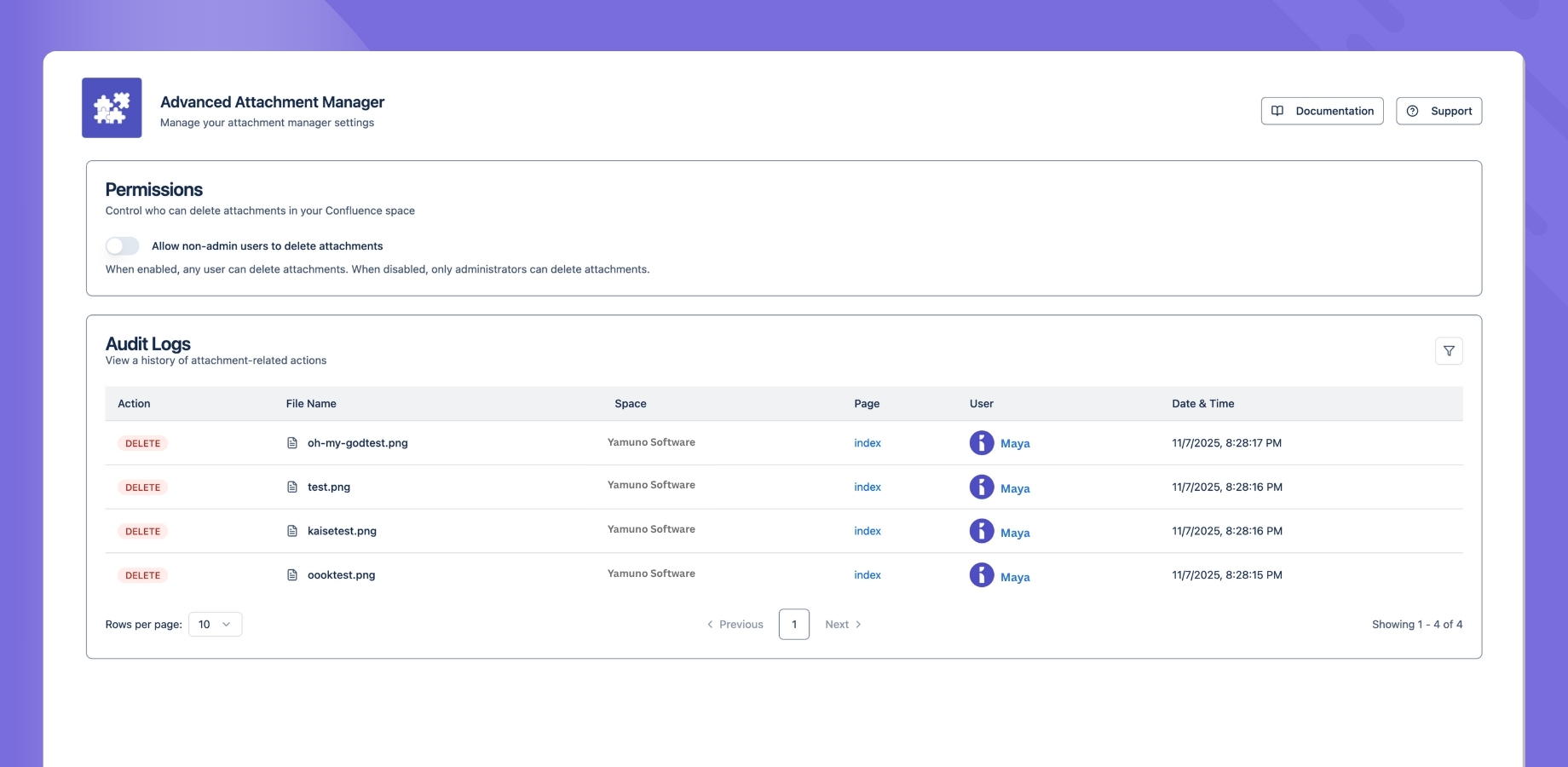
Accessing Configuration
- Go to the app’s configuration page (admin only)
- Navigate to the desired section:
- Audit Logs
- User Access
User Access Configuration
Control who can use Advanced Attachment Manager:- Find the “User Access” section
- Choose between:
- Admin Only: Only Confluence administrators can use the app
- All Users: Any user with page access can use the app
- Save your changes
Audit Logs
Advanced Attachment Manager maintains detailed audit logs of all attachment-related activities, helping you track changes and maintain accountability.Logged Activities
File Operations
- File deletions
User Actions
- Who performed the action
- When the action occurred
- What was changed
- Where the change happened
- Action results
Viewing Logs
Basic View
- Access the audit log section
- View recent activities
- Filter by date range
- Search for specific actions
Advanced View
- Filter by user
- Filter by action type
- Filter by space
- Filter by file type
- Export log data
Log Details
Each log entry includes:- Timestamp
- User information
- Action performed
- File details
- Space and page context
- Operation result
Log Management
- Configure retention period
- Set up automatic archiving
- Define log detail level
- Manage storage space
Security Settings
- Access control for log viewing
- Alert configuration
- Backup settings
Best Practices
- Regular Review: Check logs periodically
- Export Important: Save critical log data
- Monitor Changes: Watch for unusual activity
- Set Alerts: Configure notifications for important actions
- Archive Old Logs: Maintain historical records
- Review Access: Regularly review and update user access settings
- Document Changes: Keep track of configuration changes