
Prerequisites
Before you begin, ensure you have:- A Monday.com workspace with documentation
- Necessary permissions to access docs
- The Markdown Exporter app installed in your workspace
Installation Steps
-
Install the App
- Visit the Monday.com Marketplace
- Search for “Markdown Exporter”
- Click “Install”
- Authorize the app for your workspace
-
Verify Installation
- Open your Monday.com workspace
- Look for “Markdown Exporter” in your apps menu
- If visible, installation is successful
Your First Export
Follow these simple steps to export your Monday.com documentation to markdown:Step 1: Open the App
- Access from Workspace Apps
- Open your Monday.com workspace
- Navigate to the workspace apps section
- Click on “Markdown Exporter” to launch the app
Step 2: Select Workspace and Source
-
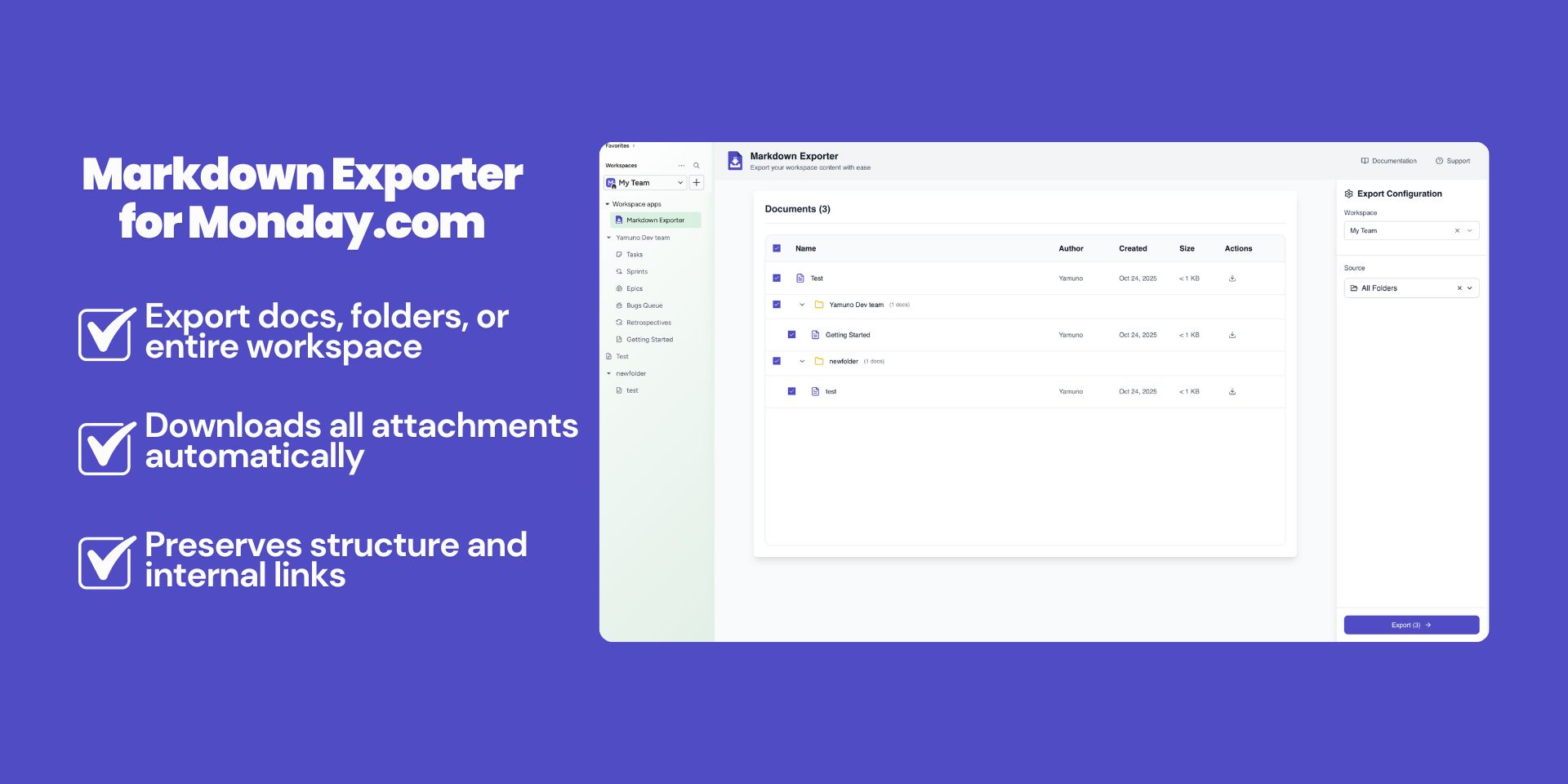
Choose Your Workspace
- Select the workspace containing the docs you want to export
- The app will load all available folders and documents
-
Select Export Source
- Choose Specific Folder to export docs from a particular folder
- Or select All Folders to export the entire workspace documentation
- Review the list of documents that will be processed
Step 3: Download Your Export
-
Download Options
You have two ways to download your markdown files:
- Download Specific Document: Select individual documents from the list and download them one at a time
- Download Processed File: Download all processed documents as a single ZIP file with organized folder structure
-
Wait for Processing
- The app will convert your Monday.com docs to markdown format
- Attachments will be downloaded and referenced locally
- Processing time depends on the number of documents and attachments
-
Get Your Files
- Click the download button when processing is complete
- Extract the ZIP file (if downloading all)
- Your markdown files are ready to use
Understanding Export Results
File Structure
When you export, you’ll receive:Attachment References
Images and media are referenced using relative paths:Internal Links
Internal doc links are converted to markdown links:Common Export Scenarios
Backup Your Documentation
- Use All Folders export for complete backups
- Schedule regular exports for documentation history
- Store exports in version control
Create Local Documentation
- Export relevant folders
- Host as static site (e.g., with MkDocs)
- Share with team or customers
Archive Old Projects
- Export project documentation
- Include all attachments
- Store compressed archive
Next Steps
- Read the Features Guide
- Check Known Issues
- Review Release Notes
Tips for Best Results
- Organize Before Export: Clean up your Monday.com docs structure before exporting
- Check Permissions: Ensure you have access to all docs you want to export
- Test Small First: Try exporting a single doc before doing workspace-wide exports
- Verify Attachments: Check that all attachments are accessible in Monday.com
- Review Output: Always verify the exported markdown renders correctly